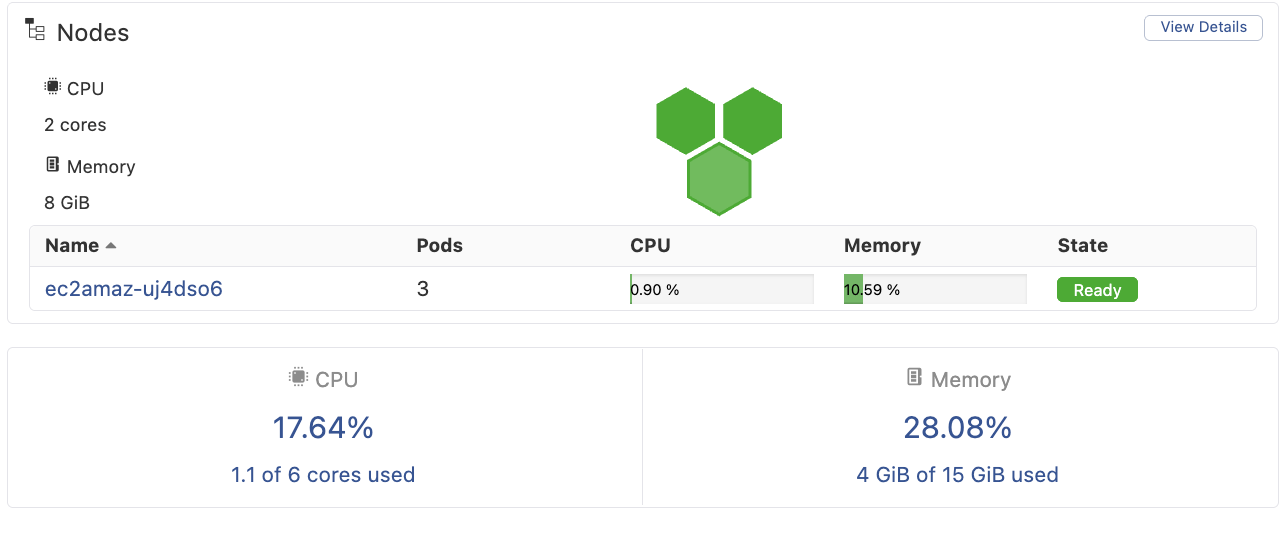
Nirmata supports adding Windows worker nodes to a cluster with a Linux master. This allows you to run Windows containers alongside Linux workloads in the same Kubernetes cluster. Before proceeding, ensure your node meets all Prerequisites .
Step 1: Configure Cloud Credentials
Navigate to Cloud Credentials (left toolbar) and click on Add Cloud Credentials. Select Direct Connect as the cloud provider.
Step 2: Add Windows Node to a Host Group
- Navigate to the Host Group where you want to add the Windows node.
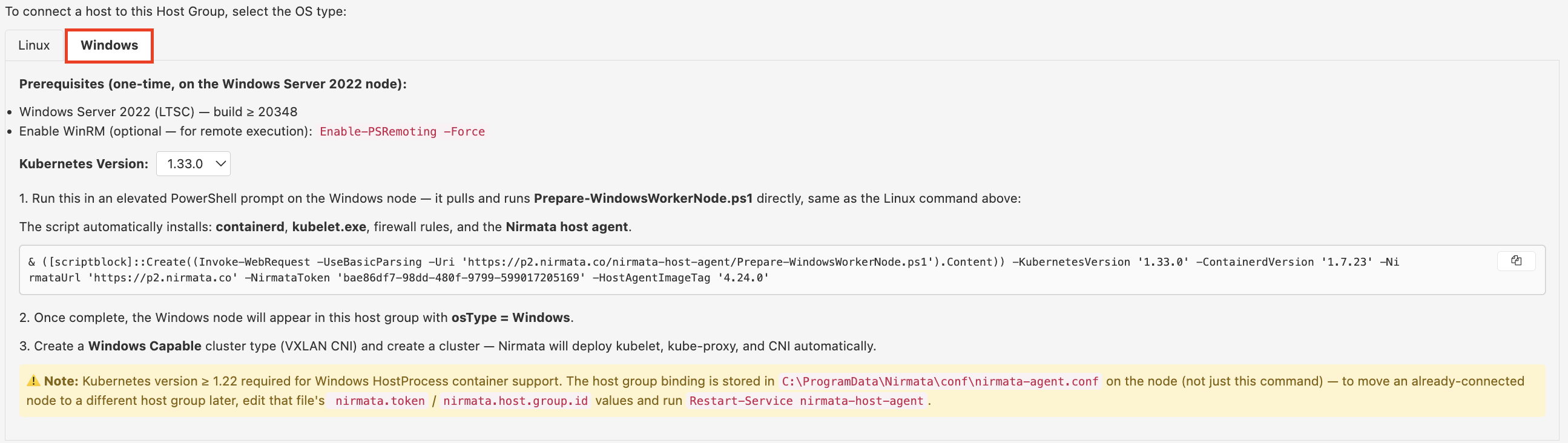
- Click on the Windows tab to switch to Windows node configuration.
- Run the script shown in the UI on the Windows node to install the Nirmata host agent.
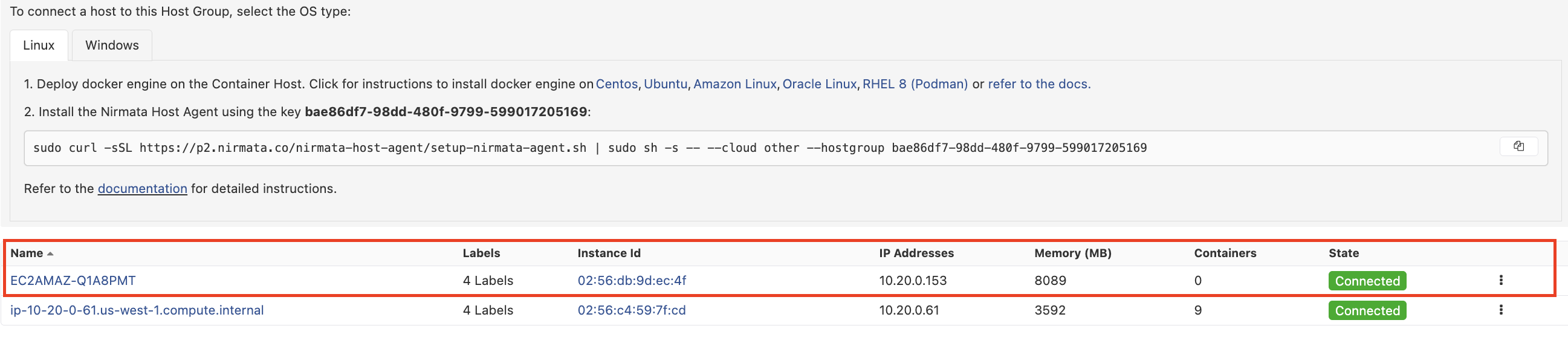
Once the script runs and the Nirmata agent is installed successfully, the node will appear in the host group list. Note that the Containers count will show as 0 — this is expected, as the Nirmata agent runs as a Windows service rather than a container.
Step 3: Create a Cluster Type with Windows Support
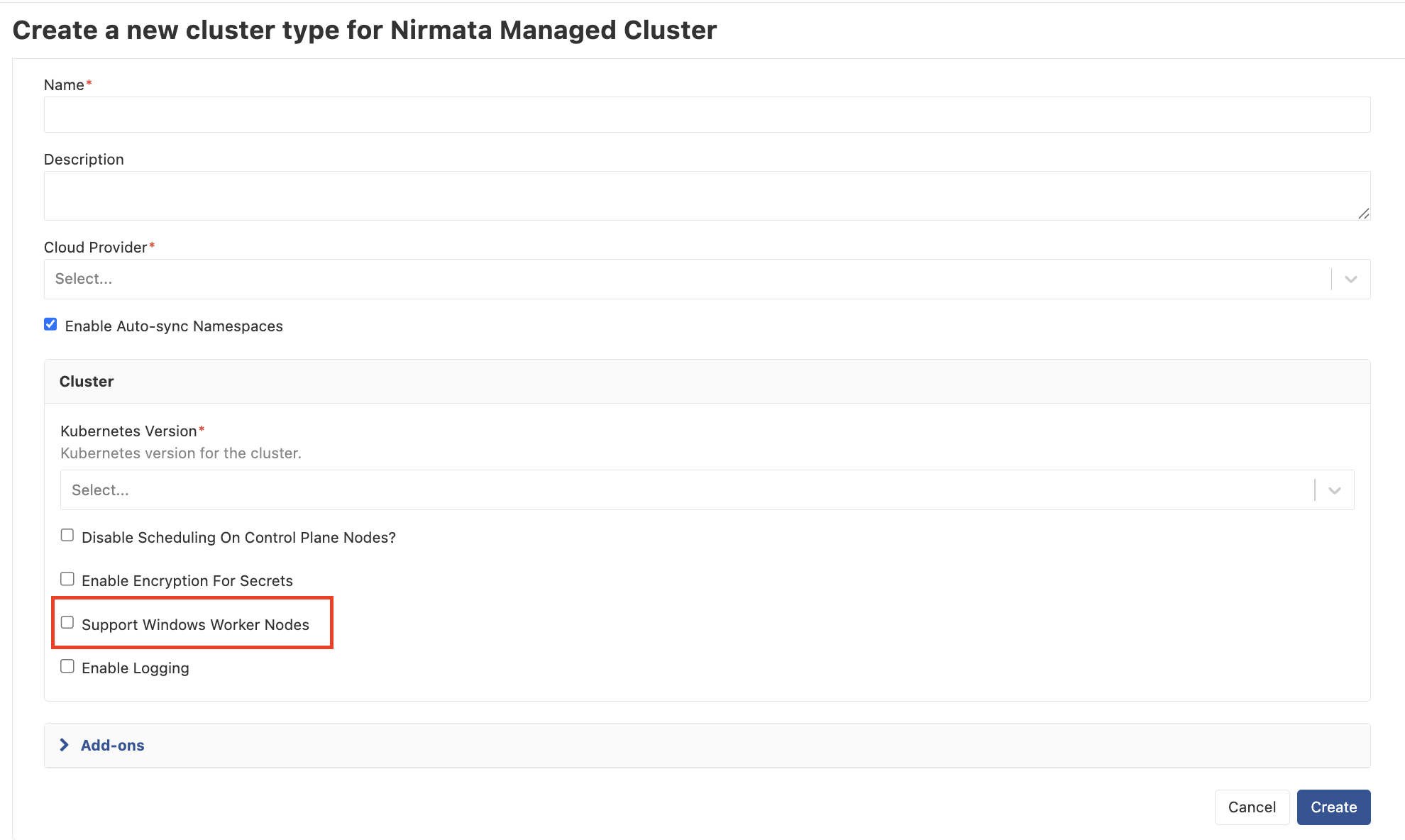
- Navigate to Cluster Types (Policies → Cluster Types) and click Add Cluster Type.
- Fill in the required configuration for the cluster type.
- Under the Cluster section, check the Support Windows Worker Nodes option to enable Windows node support.
- Click Create.
Step 4: Create the Cluster
- Navigate to Clusters (left toolbar) and click Add Cluster.
- Select the cluster type created in the previous step.
- Click Create Cluster.
Nirmata will automatically push the kubelet and kube-proxy containers to the Windows node. Once cluster creation completes, the Windows node will be listed under the cluster’s Nodes tab in Ready state.