A Host Group is required to register Windows nodes with Nirmata before adding them to a cluster. This section covers creating a Direct Connect Host Group with private registry support for Windows containers.
Step 1: Create a Host Group
- Navigate to Cloud Credentials (left toolbar) and click Add Host Group.
- Select Direct Connect as the type.
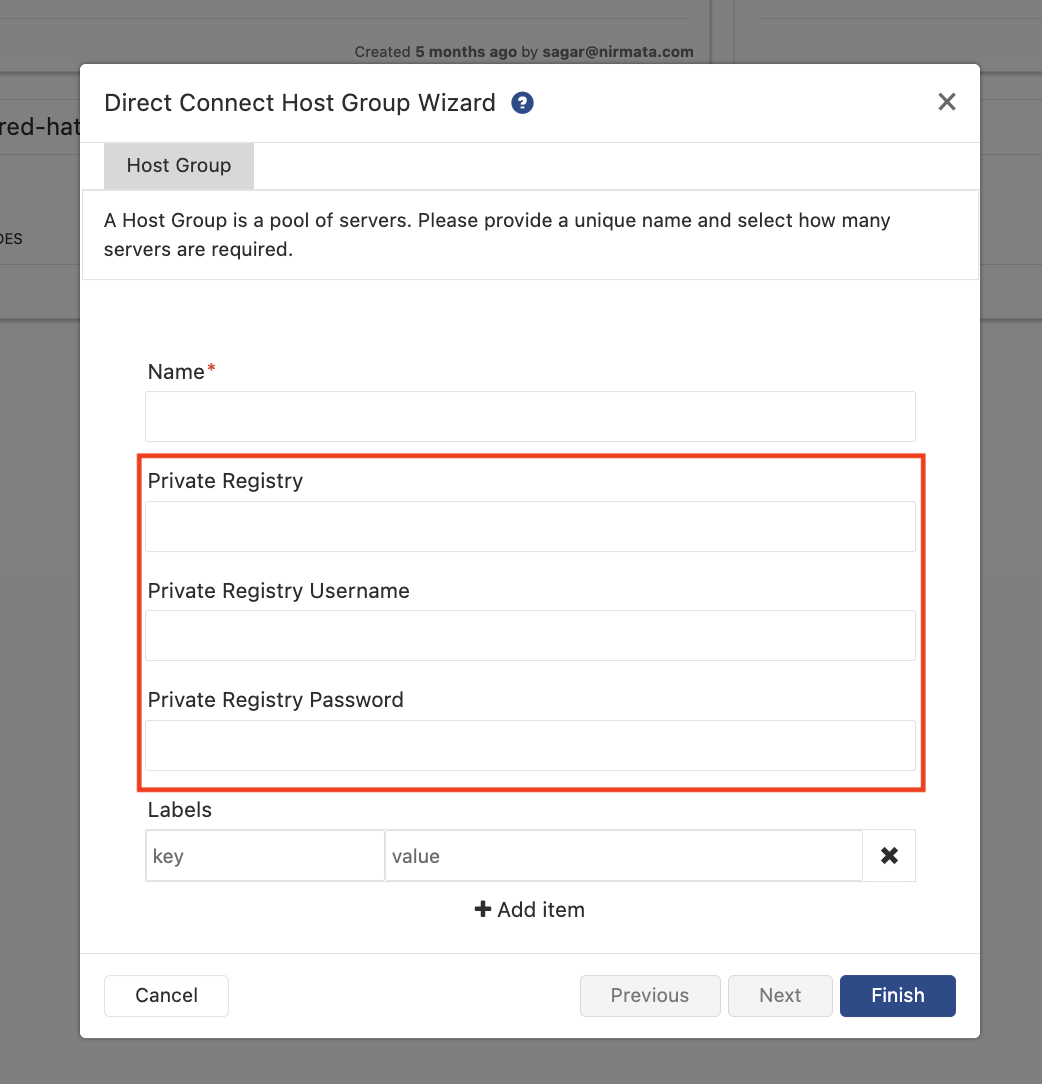
- In the Direct Connect Host Group Wizard, provide a unique name for the Host Group.
- Fill in the Private Registry fields — these are required for Windows containers so that
containerdcan pull installation files (kubelet, containerd, pause image, etc.) from your private registry instead of the public internet:- Private Registry — registry base path (e.g.
nexus.repo:500/nirmata, no trailing slash) - Private Registry Username
- Private Registry Password
- Private Registry — registry base path (e.g.
- Click Finish.
Step 2: Verify the Private Registry in the Windows Tab
Once the Host Group is saved, open it and click the Windows tab. You will see the Air-gap / Private Registry section populated with the registry details you entered. The enrollment script command shown will automatically include the -PrivateRegistry, -PrivateRegistryUsername, and -PrivateRegistryPassword parameters.
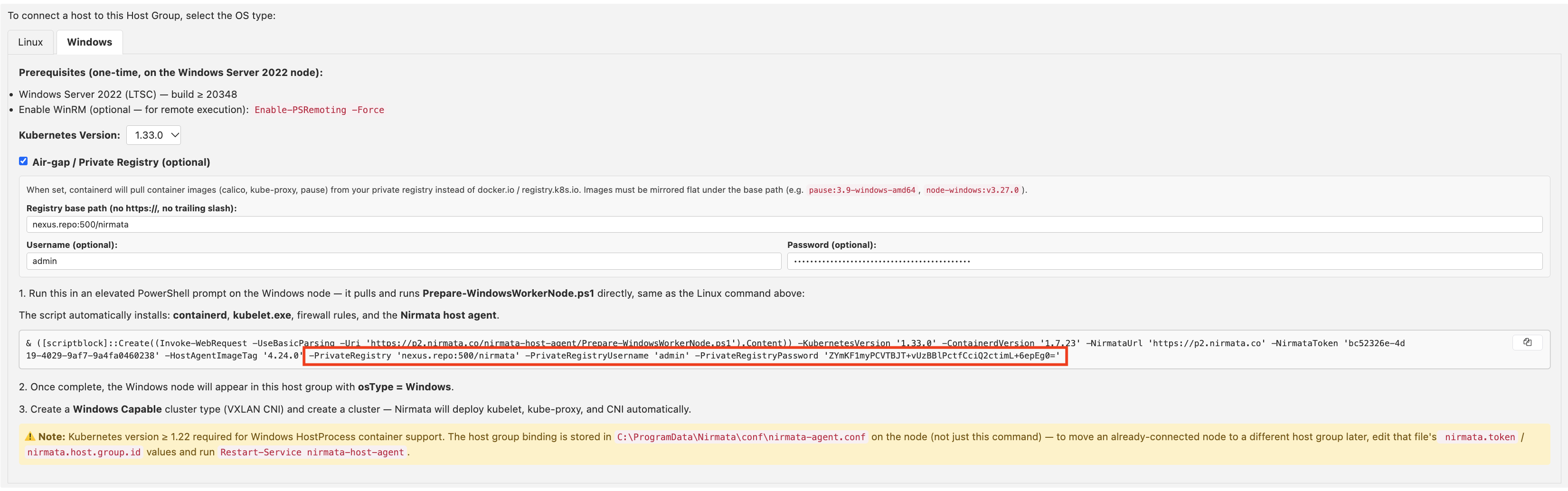
Note: Before running the enrollment script, ensure that all required images and binaries are present in your private registry. The following must be available under the registry base path:
- Windows container images:
pause,calico,kube-proxy, andnode-windows(mirrored flat, e.g.pause:3.9-windows-amd64)kubelet.execontainerd.exeIf any of these are missing, the node enrollment or cluster creation will fail.